Software
PiEEG-8 works with three software stacks. Pick the one that fits what you want to do.
| Best for | Language | Effort | |
|---|---|---|---|
| PiEEG Server | Live dashboard, recording, streaming to apps, LSL, VRChat, webhooks | Any (WebSocket JSON) | One command |
| Python SDK scripts | Learning how the ADS1299 works, custom register settings, raw data | Python | Edit and run a script |
| BrainFlow | Using PiEEG-8 in an existing BrainFlow pipeline | Python, C++, Java, C#, R, Julia… | Build BrainFlow on the Pi |
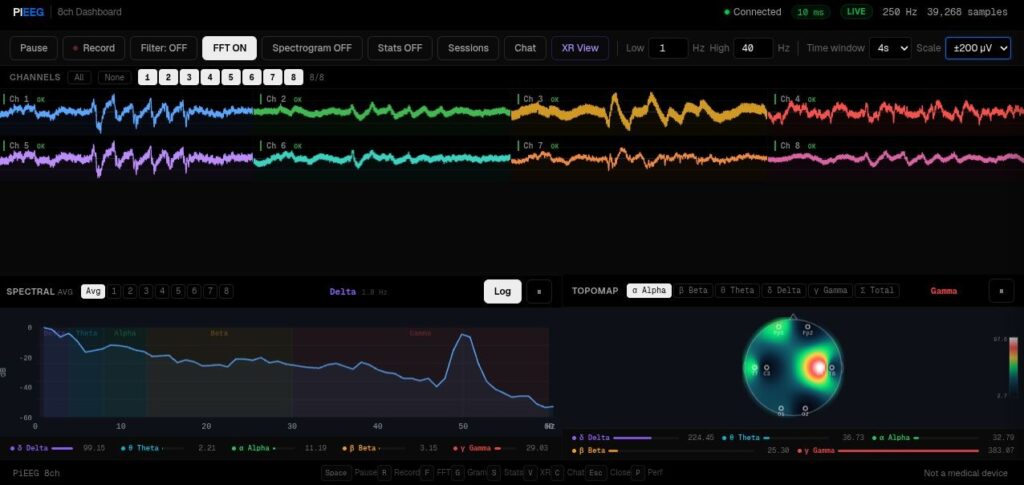
PiEEG Server (recommended)
PiEEG Server reads the shield, filters the signal and serves a browser dashboard plus a real-time data stream.
# install (first time only)
curl -sSL https://raw.githubusercontent.com/pieeg-club/PiEEG-server/main/install.sh | bash
sudo reboot

# run for PiEEG-8
pieeg-server --device pieeg8| Address | What it is |
|---|---|
http://raspberrypi.local:1617 | Browser dashboard |
ws://raspberrypi.local:1616 | WebSocket stream: JSON frames with 8 channels in µV |
Common options for PiEEG-8
pieeg-server --device pieeg8 --filter             # 1–40 Hz band-pass
pieeg-server --device pieeg8 --record session.csv # record while streaming
pieeg-server --device pieeg8 --lsl                # Lab Streaming Layer outlet
pieeg-server --device pieeg8 --osc                # VRChat OSC bridge
pieeg-server record session.csv --device pieeg8 --duration 300   # 5-minute CSV, no server
pieeg-server monitor --device pieeg8              # live view in the terminal
pieeg-server doctor # check SPI, GPIO and settingsThe service the installer creates starts in 16-channel mode. Add --device pieeg8 to it, as shown in How to Start.
Read the stream from Python
import asyncio, json, websockets

async def main():
    async with websockets.connect("ws://raspberrypi.local:1616") as ws:
        async for msg in ws:
            frame = json.loads(msg)          # {"t": ..., "n": ..., "channels": [8 values in µV]}
            print(frame["n"], frame["channels"])

asyncio.run(main())
More: Quick Start · Configuration · WebSocket API · LSL · Recording
Python SDK scripts
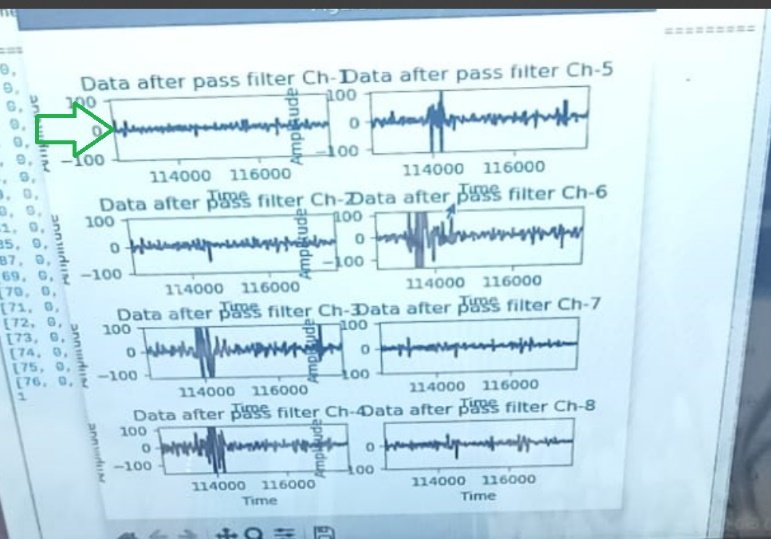
Small, self-contained Python scripts that set up the ADS1299 registers, read raw samples over SPI and plot or save them. They are the easiest way to see exactly how the hardware works.
Source: github.com/pieeg-club/PiEEG-8/tree/main/1.GUI (opens in a new tab)
Which script
| Script | Pi | What it does |
|---|---|---|
1.8_ch_Pi5.py (opens in a new tab) | Pi 5 | Live 8-channel graph with band-pass filter (libgpiod 1.6.x API) |
1.8_ch_Pi5_gpiod_1_5_4.py (opens in a new tab) | Pi 5 | Same, for the gpiod==1.5.4 package from PyPI |
1.8_ch_Pi4.py (opens in a new tab) | Pi 4 | Live 8-channel graph with band-pass filter |
Raw_data_1Ch_Pi5.py (opens in a new tab) | Pi 5 | Raw, unfiltered view of one channel |
save_data_short_Pi5.py (opens in a new tab) | Pi 5 | Save raw µV to Excel, no graph |
save_data_gpiod_1_5_4.py (opens in a new tab) | Pi 5 | Save raw µV to Excel, gpiod==1.5.4 |
save_data_short_Pi4.py (opens in a new tab) | Pi 4 | Save raw µV to Excel, no graph |
Install the libraries
Recent Raspberry Pi OS blocks system-wide pip install, so use a virtual environment:
sudo apt install -y python3-venv python3-dev
python3 -m venv --system-site-packages ~/pieeg-env
source ~/pieeg-env/bin/activate
pip install spidev matplotlib scipy pandas openpyxl
Then add the GPIO library for your Pi:
Pick one of these, and use the matching script:
# option A: for 1.8_ch_Pi5.py and save_data_short_Pi5.py
sudo apt install -y python3-libgpiod

# option B: for 1.8_ch_Pi5_gpiod_1_5_4.py and save_data_gpiod_1_5_4.py
pip install gpiod==1.5.4
The Pi 5 scripts also import RPi.GPIO. If that import fails, install the Pi 5 compatible drop-in: pip install rpi-lgpio.
Run
source ~/pieeg-env/bin/activate
git clone https://github.com/pieeg-club/PiEEG-8.git
cd PiEEG-8/1.GUI
python 1.8_ch_Pi5.py        # or 1.8_ch_Pi4.py on a Pi 4
A window opens with 8 live graphs.
Tested library versions (Python 3.11.2): matplotlib 3.6.3 · spidev 3.5 · RPi.GPIO 0.7.1a4 · scipy 1.10.1
The save scripts write the file after a fixed number of samples (10000 = 40 seconds at 250 SPS). Change that number in the script to record longer or shorter.
BrainFlow
PiEEG-8 is supported in BrainFlow (opens in a new tab) as BoardIds.PIEEG_BOARD (ID 56): 8 EEG channels at 250 Hz, named Fp1, Fp2, C3, C4, P7, P8, O1, O2.
The PiEEG board needs BrainFlow's SPI support, which is not in the pip wheels. Build BrainFlow from source on the Raspberry Pi with python tools/build.py --build-periphery (or CMake -DBUILD_PERIPHERY=ON), then install the Python package from the local build.
import time
from brainflow.board_shim import BoardShim, BrainFlowInputParams, BoardIds

params = BrainFlowInputParams()
params.serial_port = "/dev/spidev0.0"      # optional, this is the default

board = BoardShim(BoardIds.PIEEG_BOARD, params)
board.prepare_session()
board.start_stream()
time.sleep(10)
data = board.get_board_data()              # rows = channels, columns = samples
board.stop_stream()
board.release_session()

eeg = BoardShim.get_eeg_channels(BoardIds.PIEEG_BOARD)
print(data[eeg].shape)                     # (8, ~2500)
You may need sudo, or to add your user to the spi and gpio groups, to open the SPI device.
PiEEG app (legacy)
A ready-made Linux desktop app for the Pi that shows and saves the raw stream. Download PiEEG.zip (opens in a new tab), unzip it, open the bundle folder and launch PiEEG_app.
The app saves raw 27-byte frames as text. Convert them with:
1.Data_visualisation.py(opens in a new tab): plot a saved file2.Convert_data__save_excel.py(opens in a new tab): convert to µV and save as a table
For new projects, use PiEEG Server instead.
Next
- Signals & Datasets: sample recordings and a machine-learning example
- Specification: data frame, registers and µV conversion for writing your own driver