Update Framework
If you have trouble connecting to the software over BLE, the fix is usually to update the microcontroller firmware by uploading a new hex file.
What You Need
- An ST-Link programmer
- The cables included in the package with the ST-Link
- A computer with a free USB port
[!NOTE] The ST-Link and its cables ship inside the same package.
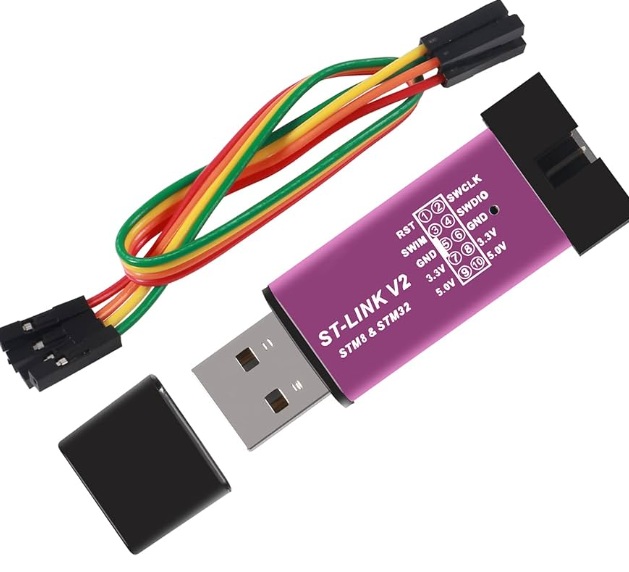
Step 1 — Connect the ST-Link
Connect the ST-Link to your computer over USB. It should appear as a COM port in Device Manager.
[!IMPORTANT] If the ST-Link is not recognized, update its driver and reconnect.
Step 2 — Install STM32CubeProgrammer
Download and install STM32CubeProgrammer — the official STMicroelectronics tool for flashing firmware:
st.com/en/development-tools/stm32cubeprog.html (opens in a new tab)
Step 3 — Wire the Device (SWD)
Connect the ST-Link to the ironbci board using the four cables, over the SWD interface.
| ST-Link | ironbci | Signal |
|---|---|---|
| GND | GND | Ground reference |
| RST | RST | Reset (NRST) |
| SWD | SWD | Data line (SWDIO) |
| CLK | CLK | Clock line (SWCLK) |
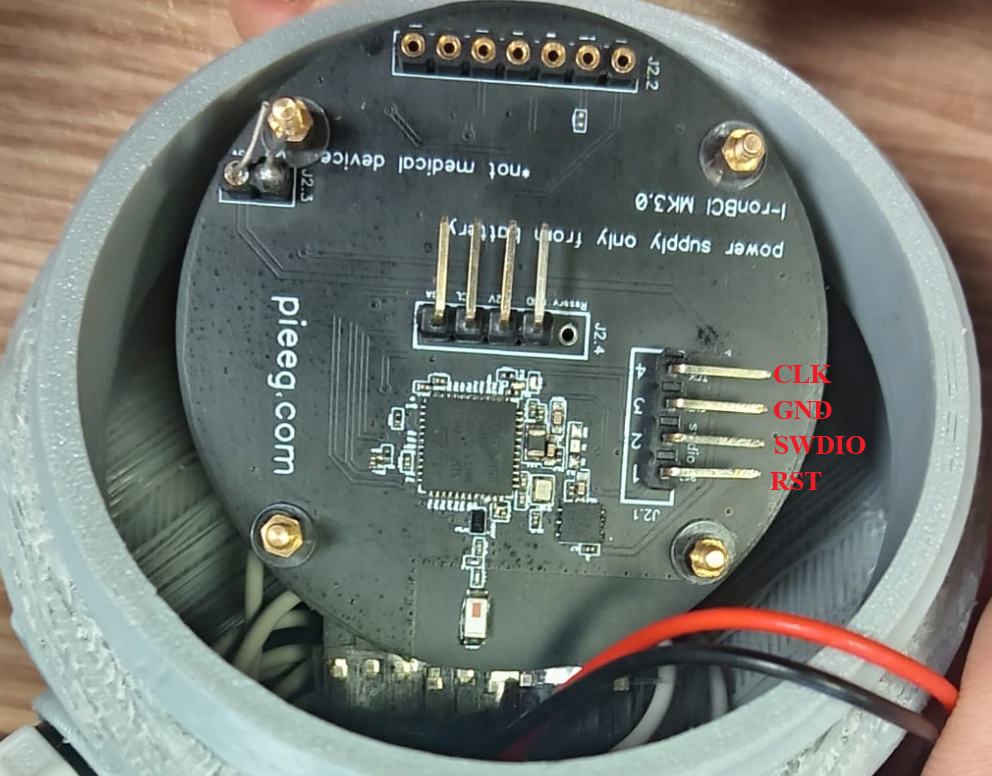
STL link connection
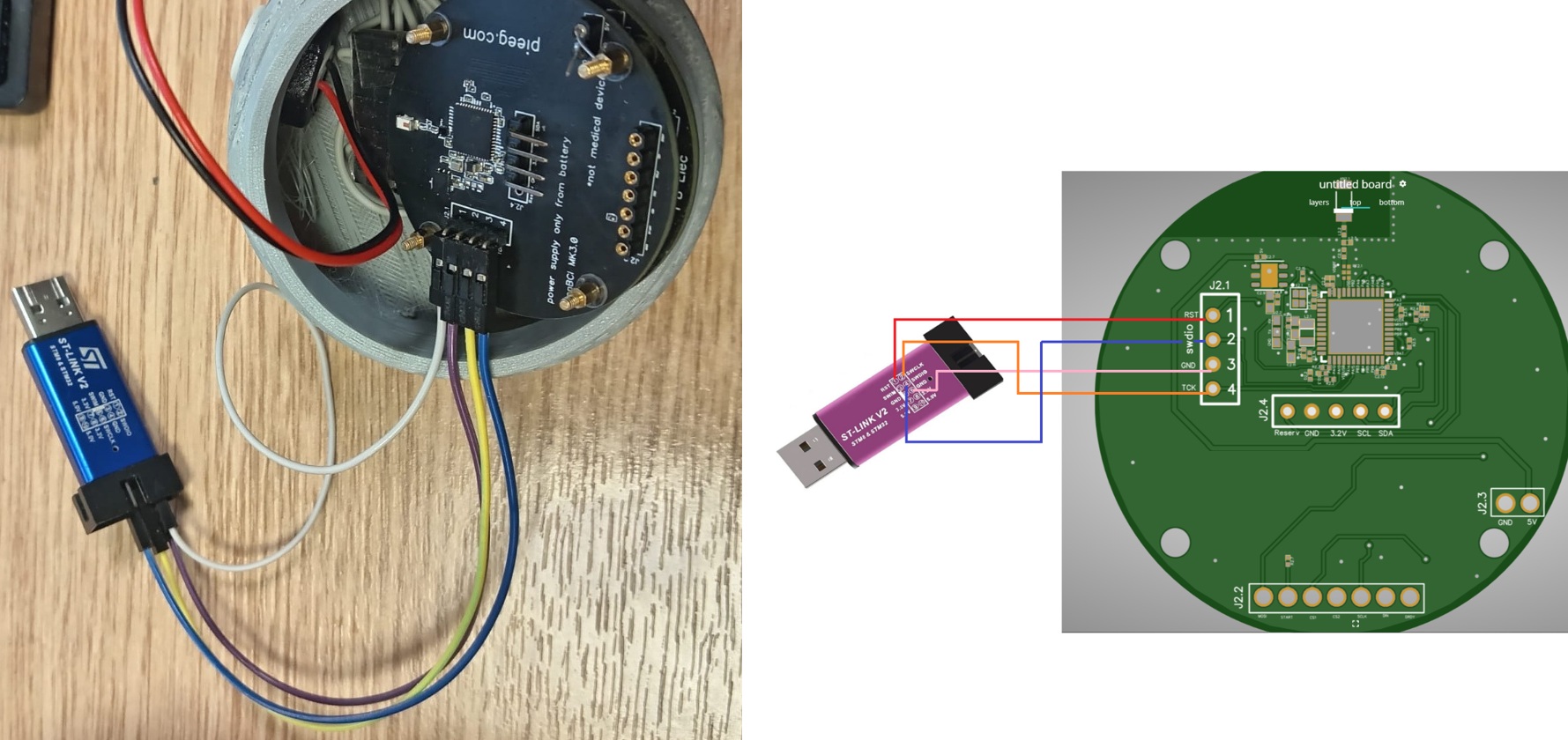
Step 4 — Flash the Firmware
- In STM32CubeProgrammer, click Connect.
- Open the new hex file.
- Upload it to the device.
- Disconnect the device and reset it.
Get the latest hex file here:
PiEEG_XR_Hardware / Firmware / hex (opens in a new tab)
Video Guide
2. Noise
Check the connection between the electrodes and the skin — it should be firm and consistent.
To eliminate noise, follow the standard recommendations that apply to all PiEEG setups:
Noise Elimination Guide → (opens in a new tab)
3. Mask Doesn't Sit Correctly
If the mask has shifted or fallen out of position, reseat the soft part so it sits correctly.
[!TIP] A stable, well-positioned mask is the single biggest factor in clean signal quality.